THE SHORT VERSION
- A snapshot copies the workflows and the custom value keys, but not the answers. Every merge field in the account is now a pointer at a value you have not set yet, and an unset value sends a blank.
- The worst version is not blank. It is the builder's own business name, address and booking link, baked into the snapshot's custom values, so your client's first automated message welcomes their customer to somebody else's company.
- Custom values and custom fields fail for different reasons. A custom value is account-wide and empty until you fill it; a custom field is per-contact and empty until a contact has data. Mixing them up is how a workflow references a value that was never created.
- The failure is silent by default. Nothing in GoHighLevel warns you that a live workflow is pointing at an empty custom value, so the first person to notice is usually the customer receiving the message.
- The fix is a pre-go-live audit, not a reaction. Walk the Custom Values table, set every value for this client, add fallback text on the merge fields that can run empty, and send one live test through every channel before a real contact ever does.
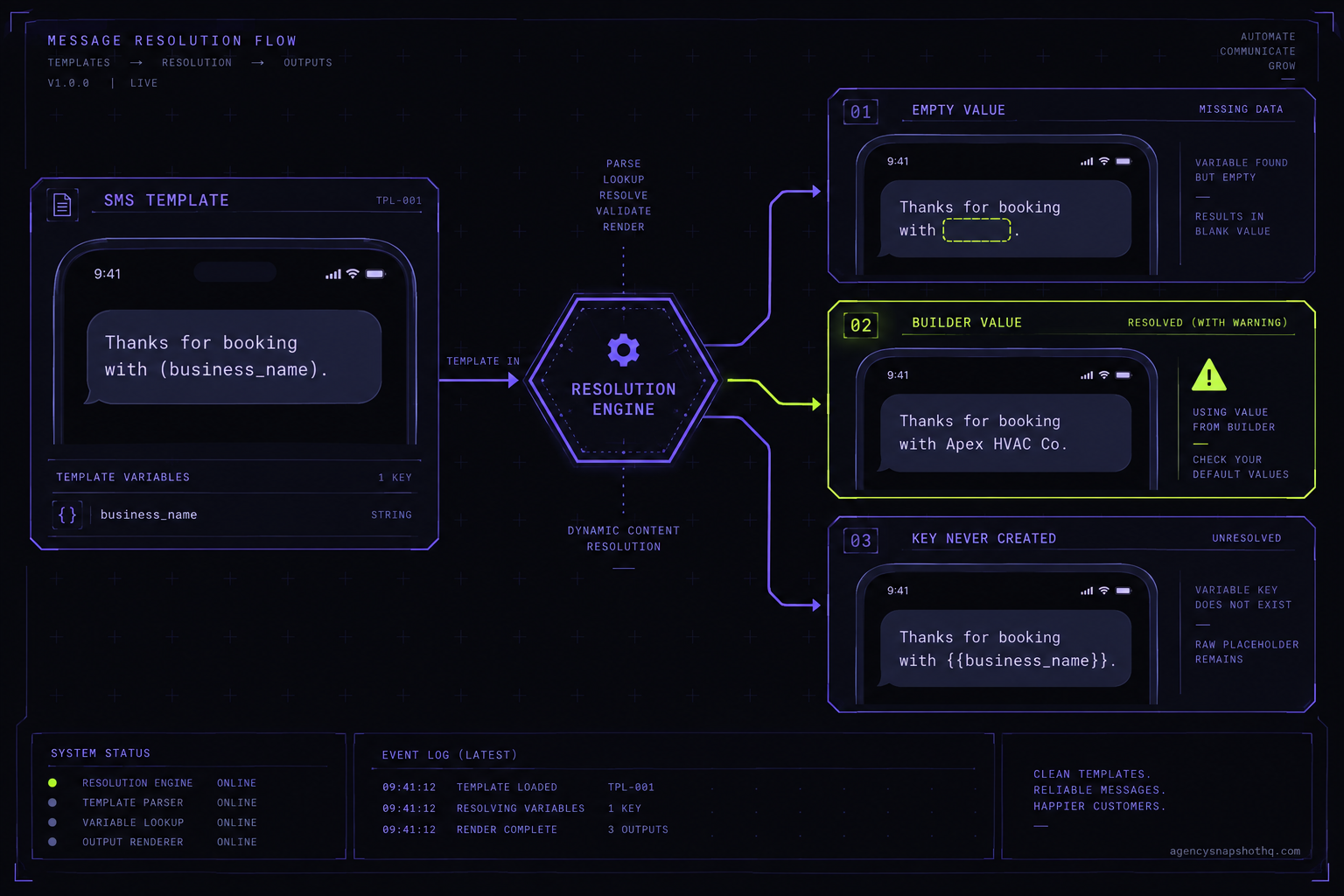
The snapshot imported clean. Green checks down the whole list, workflows in, funnels in, pipelines in, calendars in. You flipped on the intake automation, sent yourself a booking to make sure the confirmation fired, and it did. So you handed the account over. Two days later the client forwards you a screenshot from their own customer. The confirmation text reads “Thanks for booking with , see you soon.” There is a hole where the business name should be. Under it, the review request that went out that afternoon says “Hi, we’d love your feedback on your visit to.” Another hole. The workflows are running perfectly. They are running perfectly on nothing.
You built the test yourself and it looked fine, because you were testing whether the automation fired, not whether it had anything to say. Firing and speaking are different questions, and a snapshot import quietly breaks the second one while leaving the first one looking healthy. The account works. It is just talking to your client’s customers with the words missing.
This is one of the most common ways a good snapshot embarrasses the agency that installed it, and it almost never shows up in the install itself. It shows up later, in front of a real customer, in a message you were sure you had checked. This briefing is about why that gap exists, the five shapes it takes, and the short audit that closes it before anyone outside the account ever sees a blank.
Custom values, custom fields, and what a snapshot actually copies
Start with what a snapshot is, because the whole problem falls out of one word in the definition. HighLevel’s own overview describes a snapshot as a way to copy account assets fast: the workflows, funnels, pipelines, emails, calendars, custom fields and custom values from one sub-account, packaged to drop into another. The word is copy. A snapshot copies the machinery. It does not, and cannot, copy the answers that machinery is supposed to read, because the answers belong to a specific business and a snapshot is built to be business-agnostic.
To see why that breaks a text message, you have to separate three things GoHighLevel keeps close together: the merge field, the custom value, and the custom field. They look alike in a message editor and they fail for different reasons.
A merge field is a placeholder you drop into a message so the platform fills it in at send time. When you type the business name token into an SMS, you are not typing the business name. You are typing a pointer that says “look this up when you send.” A custom value is one of the places that pointer looks. It is account-wide: one answer for the whole sub-account, the same for every contact. The business name, the office address, the main booking link, the sender name on your emails, the review link you send after a job. You set each one once, in Settings, Custom Values, and every message that references it reads the same answer.
A custom field is the other place the pointer looks, and it is the one people confuse with the first. A custom field is per-contact. It holds a different answer for every person in the account: their appointment time, the make of their car, the property they enquired about. It is empty until that specific contact has data in it.
Here is what the snapshot does with the three. It brings the merge fields across inside the messages, because they are part of the message. It brings the custom value definitions and the custom field definitions across, because they are account assets. What it does not bring is a populated, correct-for-this-client answer behind any of them. A custom value arrives empty, or it arrives holding whatever the builder had in it. A custom field arrives as an empty column waiting for contacts that do not exist yet. The pointers all survive the trip. The things they point at do not.
| What it is | Scope | What a snapshot brings | Why it goes wrong |
|---|---|---|---|
| Merge field | The pointer inside a message | Copied intact, inside the message | It resolves to whatever is behind it, blank included |
| Custom value | One answer for the whole account | The key, often the builder’s own answer | Empty or wrong until you set it for this client |
| Custom field | A different answer per contact | The empty column, no data | Empty until a real contact fills it |
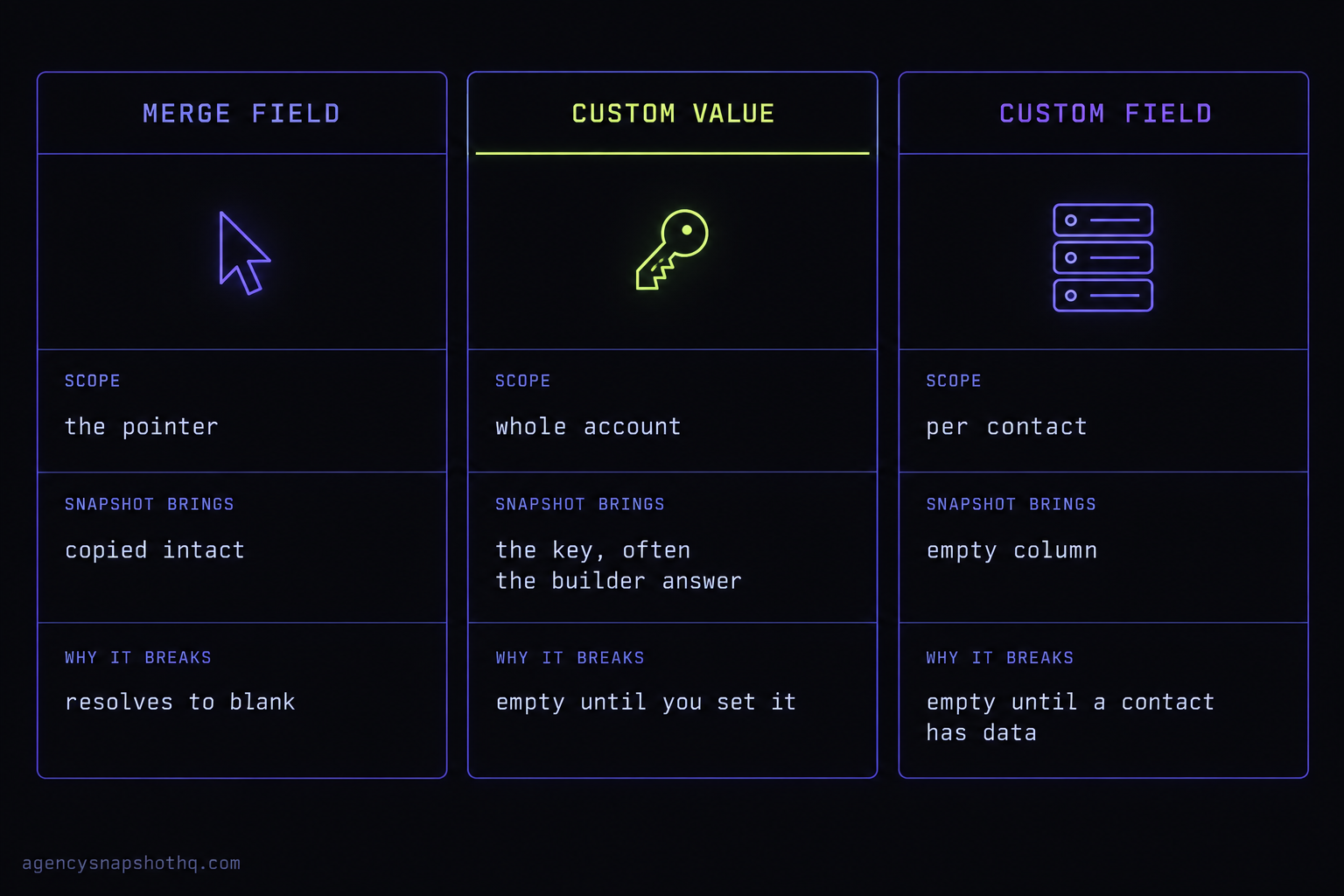
So when the message sends, GoHighLevel walks each merge field, follows the pointer, and prints what it finds. If you set the custom value, it prints your client’s business name. If you did not, it prints nothing, and the customer reads a sentence with a hole in it. This is not a bug you can file. It is the shape of the tool. A snapshot moves the wiring and leaves the wiring live, and live wiring with nothing behind it is exactly a message that sends a blank. The platform’s own community has asked for years to be able to map or merge custom values during a snapshot import precisely because it does not happen automatically today. Until it does, the gap between the wiring and the answers is yours to close, on every account, by hand.
The five places the merge field goes out wrong
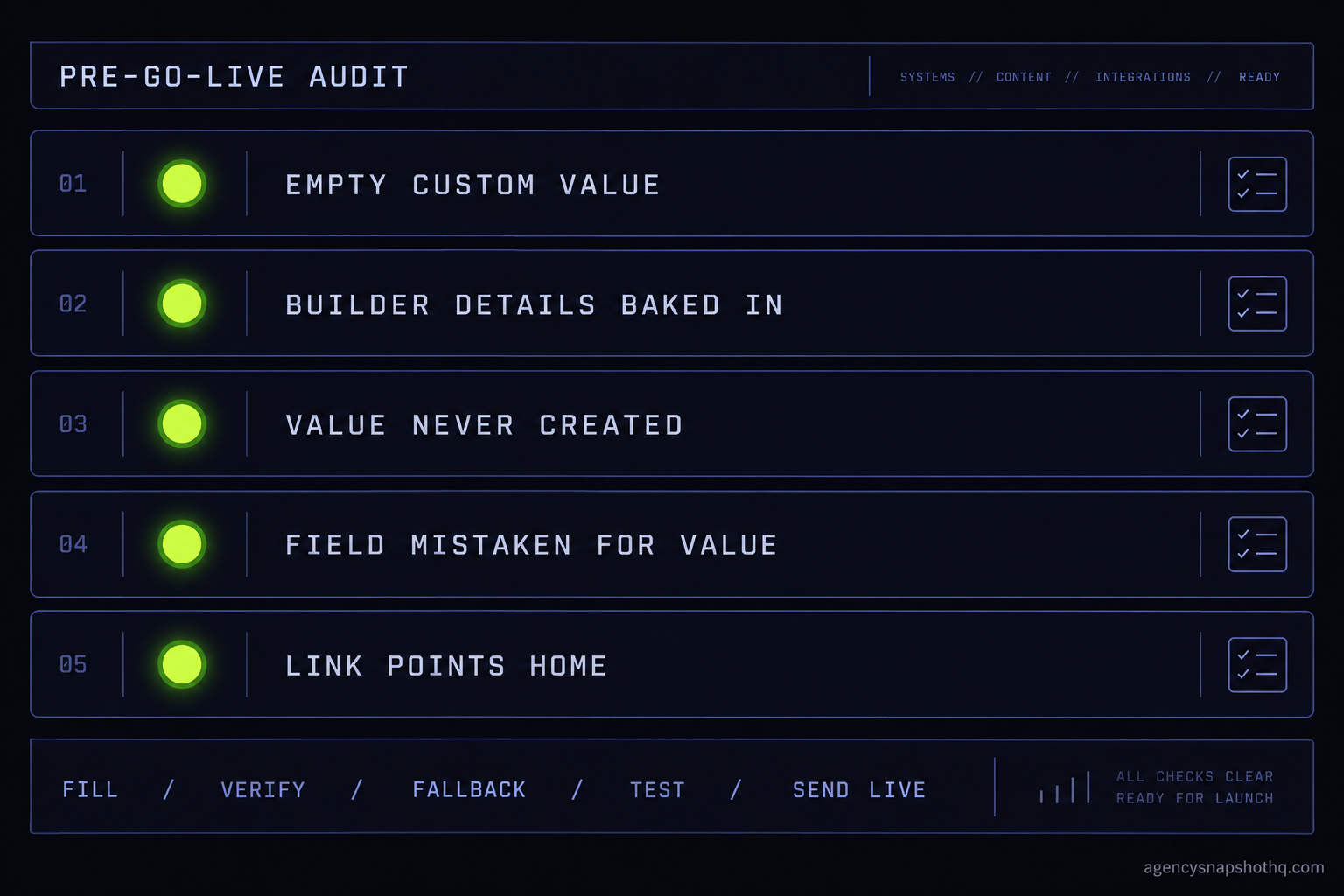
The gap cashes out in five predictable ways. Each has a tell, a cause and a fix, and the reason they hurt is that only the first is loud. The other four are quiet, which means the customer meets them before you do.
The empty custom value that sends a blank
What you see: a message with a hole. “Thanks for choosing ,” or “Book again at .” A sentence built around a business name, an address or a link, sent with that piece missing.
What is wrong: the custom value behind the merge field is empty in this account. The workflow references it, the message includes it, but nobody set it after the import, so the pointer resolves to nothing. This is the direct result of the copy-not-answer mechanic above, and it is the one people mean when they say merge fields go out blank after a snapshot import.
The fix: open Settings, Custom Values, and fill every one that this account uses. Then, for any merge field that could legitimately run empty in some message, set a fallback so the sentence still reads cleanly instead of showing a gap. Fallback text is the seatbelt, not the fix. Filling the value is the fix.
The builder’s own details, baked in and shipped
What you see: the message is not blank. It is worse. Your client’s booking confirmation welcomes their customer to a business that is not your client’s. The address is a city they have never operated in. The reply-to name is a stranger. Everything looks complete, which is why it sails through a quick glance.
What is wrong: the snapshot was built inside a real account, and its custom values carried that account’s real answers across. The builder’s business name, their address, their booking URL, their sender details are sitting in the Custom Values table as defaults, and every message dutifully prints them. A blank at least looks broken. This looks finished and is wrong, so it survives the test you were most likely to run.
The fix: treat every value in the table as unverified until you have read it and confirmed it belongs to this client. Do not scan for empties and stop. Scan for anything that is filled with the wrong company. This is the failure a rushed install misses every time, because a rushed install checks that fields are populated, not that they are populated with the right business.
The custom value that was never created
What you see: a specific message, always the same one, going out blank or showing the raw token the customer was never meant to see, while everything around it works.
What is wrong: the workflow was built to reference a custom value that does not exist in this account at all. Maybe the builder created it in the source account after the snapshot was taken. Maybe the reference was typed by hand and never matched a real key. Either way the message points at a value that was never created, so there is nothing to resolve and nothing to fill. This is the literal case of a workflow wired to a custom value that is not there, and it is the hardest of the five to spot because the account looks complete.
The fix: when a message runs empty and the Custom Values table has no matching key, you have found a reference with no home. Create the value, set it, and check whether the same missing key is referenced anywhere else in the account. One orphaned reference usually has siblings.
The custom field mistaken for a custom value
What you see: a message that reads correctly for you in a test and blank for real customers, or the reverse. It is inconsistent, which sends you hunting in the wrong place.
What is wrong: someone referenced a custom field where they meant a custom value, or trusted a custom field to be populated when a fresh contact has no data in it. A custom field is per-contact. On the day of your test, the test contact happened to have the field filled, so it looked fine. The real contact who books tomorrow has an empty field, so their message runs blank. The two token types look nearly identical in the editor, which is why the difference between a custom field and a custom value is worth getting straight before you audit anything.
The fix: for any field that must be filled for the message to make sense, confirm it is populated at the point the message sends, not just for your test contact. If the answer is the same for everyone, it should be a custom value, not a custom field. If it genuinely varies per person, make sure the workflow only sends after the field has been set, and give it a fallback for the contacts who slip through.
The link that points home to the builder
What you see: the message reads perfectly. Then the customer taps the booking link and lands on somebody else’s calendar, or the funnel button opens a domain your client has never heard of.
What is wrong: URLs are often stored as custom values too, and they carried the builder’s destinations across. The booking link points at the source account’s calendar. The funnel URL points at the builder’s domain. The unsubscribe or portal link points somewhere that has nothing to do with your client. Nothing renders blank, so nothing looks broken, right up until a customer follows the link out of the account you were paid to set up. This is the same wrong-answer failure as the second one, hiding inside a URL where a text scan will not catch it.
The fix: audit the links the same way you audit the words. Every custom value that holds a URL gets opened and followed, not just read. A booking link that resolves is not the same as a booking link that resolves to the right place. This is also where the guided, free install earns its keep, because the person setting the account up is following each link to its destination rather than trusting that a populated field is a correct one.
What a blank text actually costs
Put money on it, because a pre-go-live audit looks like overhead until you price the message that skips it. The numbers here are illustrative and the assumptions are on the table, so substitute your own.
Start with the platform, because that cost is real and sourced. To run client sub-accounts you are on HighLevel Unlimited at $297 a month, or Agency Pro at $497, with SMS and email usage billed on top. Those figures were confirmed on HighLevel’s pricing page this week via a search snippet rather than a direct fetch, so treat them as current-as-checked. That meter runs under every account whether the messages read correctly or go out with holes in them. A blank text costs the same to send as a perfect one. The difference is not on the platform bill. It is in the labour to clean up after it and the trust you spend when a client’s customer sees it first.
Price the audit against the alternative. A proper pre-go-live pass on custom values is not long: reading the Custom Values table, setting each answer for this client, following the links, and sending one live test through each channel is maybe forty-five minutes on a normal account. Call it an hour to be safe. Skipping it does not save the hour. It moves the hour to a worse time and adds interest. Now you are diagnosing a blank while the client is on the phone, working out which of the five failures it is, fixing it live, then going back through every other message in the account to find the ones the customer has not reported yet. That is easily two or three hours of reactive work, and it happens after the account is live, which is the most expensive place for it to happen.
Then price the version that reaches the customer. The second and fifth failures, the builder’s name shipped as the client’s and the link that points home, do not read as broken, so they run the longest before anyone catches them. A confirmation that welcomes a customer to the wrong company, sent for a week before the client notices, is not a forty-five minute problem. It is a credibility problem, and you are billing that client five hundred to twenty-five hundred dollars a month to be the person who does not let that happen.
Against all of that, the cost of doing it right is close to nothing. A snapshot install here is free, with 12 hours of dedicated installation support to use within 10 days of purchase, which is time you can spend running exactly this audit on the first account rather than getting the import to work at all. The snapshots themselves are one-time buys, priced by trade from $890 up to $2,490: a dental practice snapshot and an HVAC contractor snapshot both sit in that band, and the whole library on HQ All-Access is $4,950 a year. Those are the fixed numbers you can see coming. The variable number is the labour a skipped audit adds, and it only ever grows, because you pay it once per account you rushed and again every time a customer finds a gap you did not. The arithmetic is not close. An hour before go-live beats an afternoon after it, every time.
The objections worth taking seriously
Three push back on all of this, and the strongest argues against buying a snapshot from anyone, us included.
“A well-built snapshot would not ship with the builder’s details in it.” Partly fair, and a careless snapshot is genuinely worse here, because it ships more wrong answers to catch. But no snapshot, however clean, can carry your client’s business name, address or booking link, because it was built before your client existed as an account. Custom values are account-scoped by design, which the custom values documentation is explicit about: they hold one answer for one account. The best a builder can do is ship them empty and documented rather than full of their own answers. Empty still sends a blank until you fill it. So a better snapshot lowers the number of wrong-answer failures and does nothing about the empty-answer ones. The audit is not a symptom of a bad snapshot. It is the step that turns any snapshot into this client’s snapshot.
“This is what your free install is for, so why am I reading it?” Fair, and here is the honest limit. A guided install gets the first account audited and stamped correctly, and our install support is bounded on purpose: 12 hours, to be used within 10 days of purchase, after which further help is quoted as paid work. That boundary is exactly why you should read this. We can run the audit with you on the first account and show you the pattern. We cannot follow every future account you spin up for the rest of its life for free, and you would not want to depend on a vendor who claimed they could. The clients are yours, the business names are yours to know, and the account outlives the install. Take the guided start. Own the checklist after it.
“I will just watch the first live message and fix whatever is broken.” This is the objection that feels safest and is the most dangerous, because it only catches the loud failure. Watching one message tells you the empty custom value is empty. It tells you nothing about the message that reads perfectly and welcomes the customer to the wrong company, or the link that resolves to the builder’s calendar, or the custom field that was full for your test contact and empty for the real one tomorrow. Three of the five failures survive a spot check, because a spot check confirms that a message sends, not that it is true. The audit is not slower than watching. It is the only version that catches the ones you cannot see happening. If your account count has grown past where a per-account audit fits in your week, that is the signal to hand the rollout and the checklist to a crew that runs it as a system, not the signal to trust the spot check.
None of the three says the problem is imaginary. They say the fix should be cheap, honest and yours. It is all three, as long as you run it before the automations are live rather than after a customer has read the gap.
Where to start
Do the small thing first, today. Open the account you most recently installed, go to Settings, Custom Values, and read the table top to bottom. Not scanning for empties. Reading. You are looking for two things: values that are blank, and values that are filled with the wrong business. Fix both before you touch anything else, because that single table is where four of the five failures live.
Then send one real test through each channel that talks to a customer. An SMS, an email, a booking confirmation. Read each one the way the customer will, out loud if it helps, and follow every link to where it actually lands. A message that arrives is not the same as a message that is right, and the whole point of the test is to be the person who reads the gap instead of the client’s customer.
From there it is a habit, not a project. Every install ends with the same pass: fill the values, fix the wrong ones, set fallbacks where a field can run empty, follow the links, send the live tests. It takes an hour and it retires the most common way a snapshot makes an agency look careless. If the thought of running it on every account is the reason you keep not running it, that is the case for handing the deployment to a crew. Either way, the messages start telling your client’s customers the truth. That is the whole win, and the same discipline is what keeps a clean install from drifting once it is live, so the two are worth reading together.